
Give every screen
a reason to be there.
You do not need five versions of the same poster. Use a short sequence to show what your app does, why it matters and what makes it yours.
This is a creative recipe, not a store requirement. Start with the screens your app needs.Five screens.
Five different jobs.
Examples use Postcard, our sample travel app. Replace the captures and copy with your own.
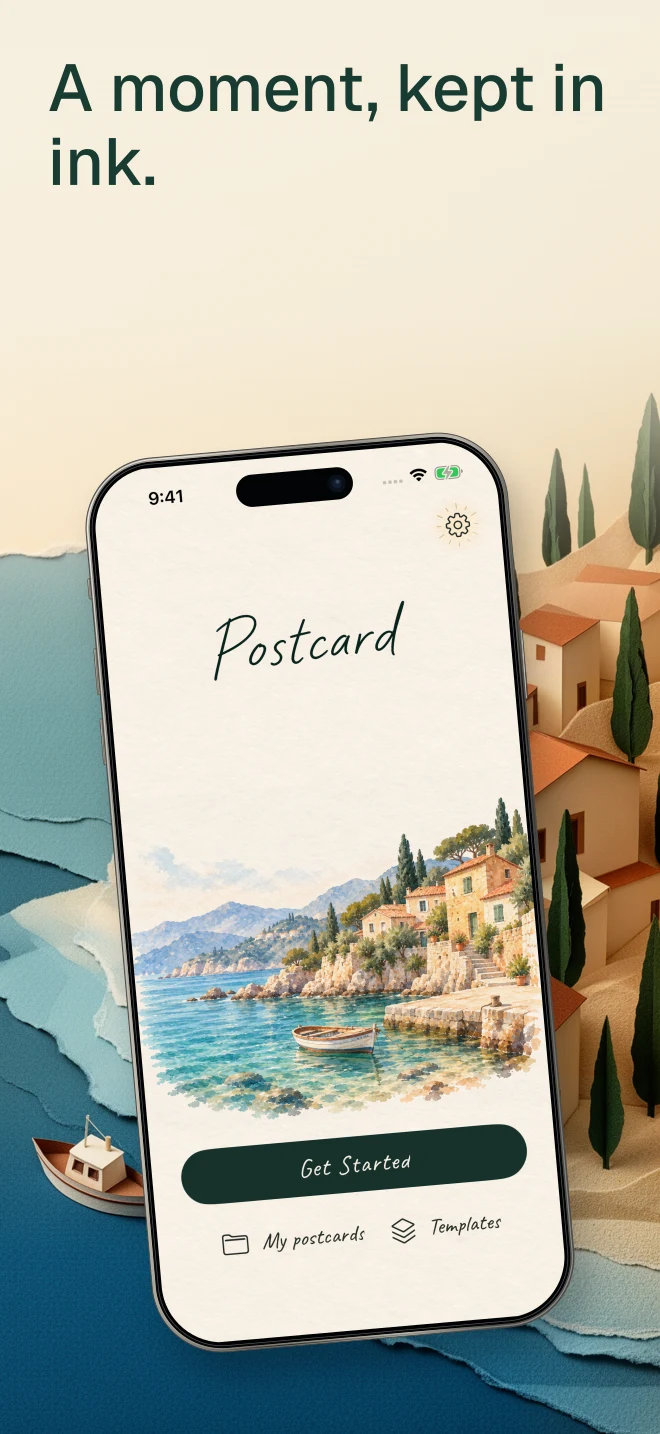 01 / What can someone do with your app?
Lead with the outcome
Use your strongest capture. Give it one clear headline, with enough space for the interface to tell the rest.
Headline starting pointKeep the places that stay with you.
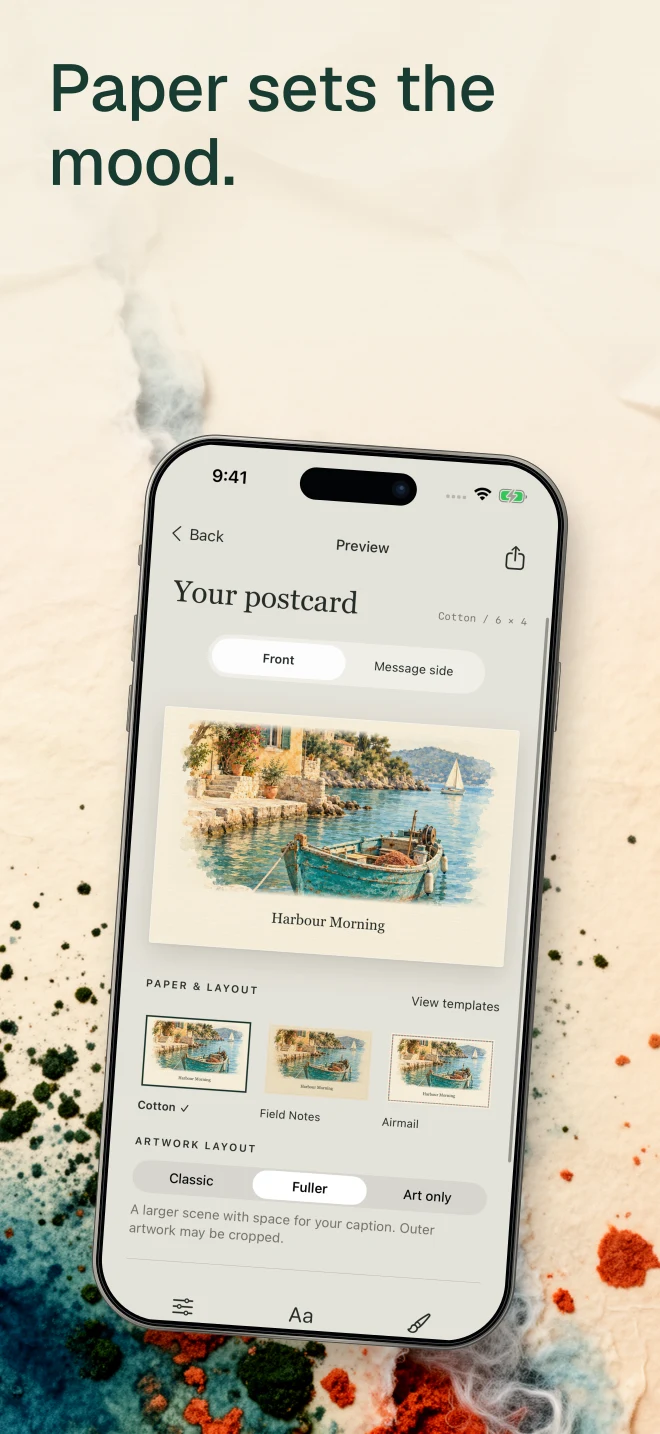 02 / What does using it actually look like?
Show the everyday action
Show a real interaction or result. A focused detail can be more useful here than another view of the home screen.
Headline starting pointA favourite place, saved in a moment.
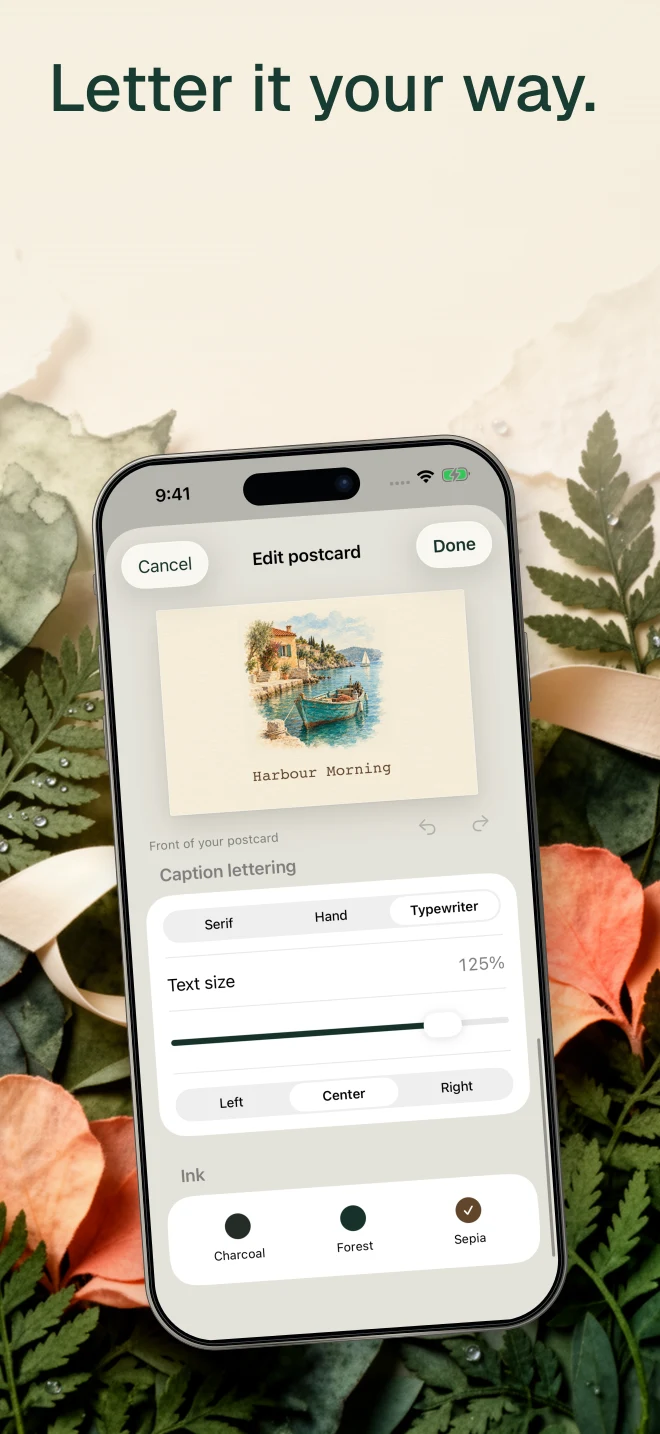 03 / What makes this useful in someone’s life?
Make a difference visible
Connect a feature to a benefit. Replace broad claims with something the customer can see in the capture.
Headline starting pointYour travels, gathered in one place.
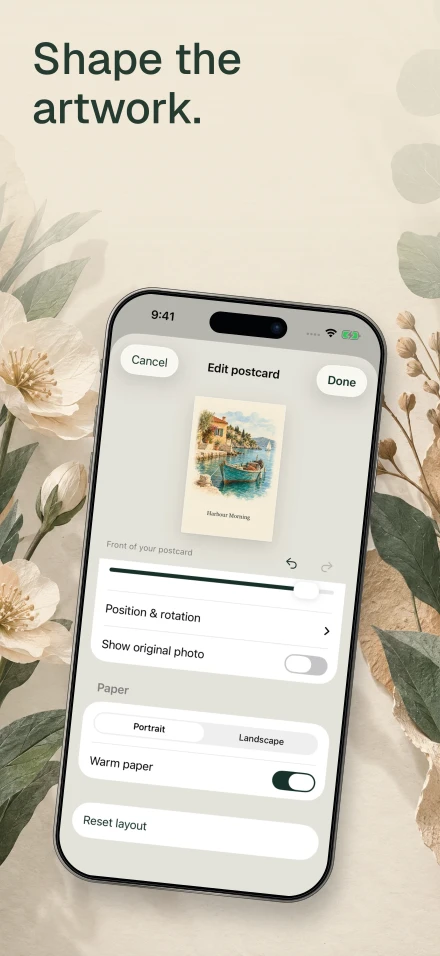 04 / What else would make someone keep it?
Add a second reason
Introduce a complementary feature. Keep the visual rhythm, but vary the scale or layout so every screen earns its place.
Headline starting pointSmall details. A fuller memory.
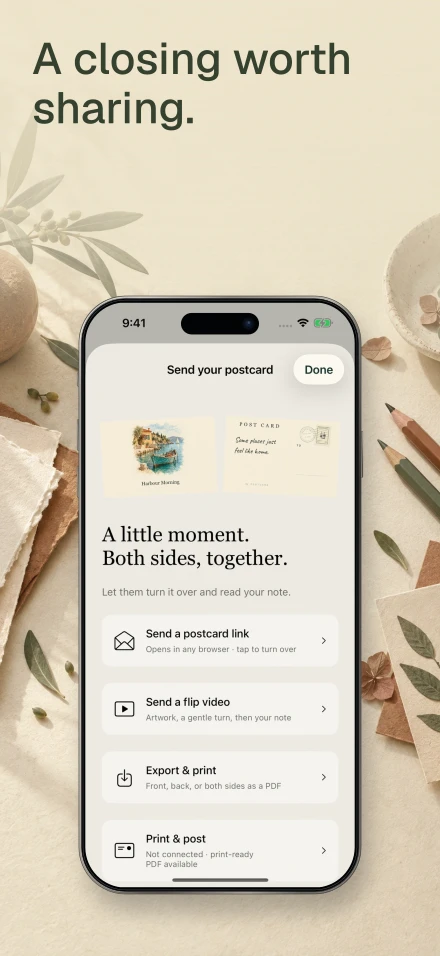 05 / What should someone remember?
Finish with clarity
Close with a real result, useful detail or personal touch. Leave out unsupported claims and store-install instructions.
Headline starting pointA collection that feels like you.
From captures
to a coherent set.
Choose a starter design, upload your captures and open the Text tool. Use Edit all copy to read every headline together. The sequence should make sense before you polish the individual screens.
Duplicate a screen to keep the same visual language. Change one thing at a time: the headline, the crop or the device angle. Use Undo to compare.
Read the editor guideA last look,
with fresh eyes.
- Replace every sample capture with a screen from your current app.
- Read the headlines in order. Give each screen a different purpose.
- Check type at a small preview size, including every translated language.
- Use captures and store versions that match the device you are showing.
- Review connected screens as a pair and check the outside edges.
- Download the final PNGs and contact sheet. Inspect them before uploading.